
Product photos
How to take product photos for Instagram with your phone
Wipe the label, shoot by a window, fill the frame with the label facing you, hold the phone at the product's height, and keep one product in the shot with nothing in front of it. Then turn that plain photo into a styled post and Story. You don't need a studio or a second camera.
You already have the best camera for your shop’s Instagram. It’s in your pocket, and it’s there when the delivery comes in. What makes a product photo work isn’t the gear. It’s a clean label, good light and a clear view of the product. Get those right in ten seconds at the counter, and the rest can be done for you.
The 5 phone rules
- Wipe the label. Dust, fingerprints and price stickers show up more on a phone screen than they do in your hand. Give it one wipe with a soft cloth.
- Shoot by the window, not under the strip light. Overhead lights flatten colour and throw glare across glass and foil. Carry the product to the nearest window. Daylight from the side is the easiest light you’ll ever get.
- Fill the frame, label facing you. Step in until the product takes up most of the screen. Turn it so the name faces the lens straight on. If the label curves, line up its middle.
- Hold steady at the product’s height. Crouch or lift the product so the phone is level with it, not looking down on it. Tuck your elbows in and tap to focus on the label before you shoot.
- One product, nothing in front of it. No card reader, no receipt roll, no second item creeping into the edge. One product per photo gives you one clear post.
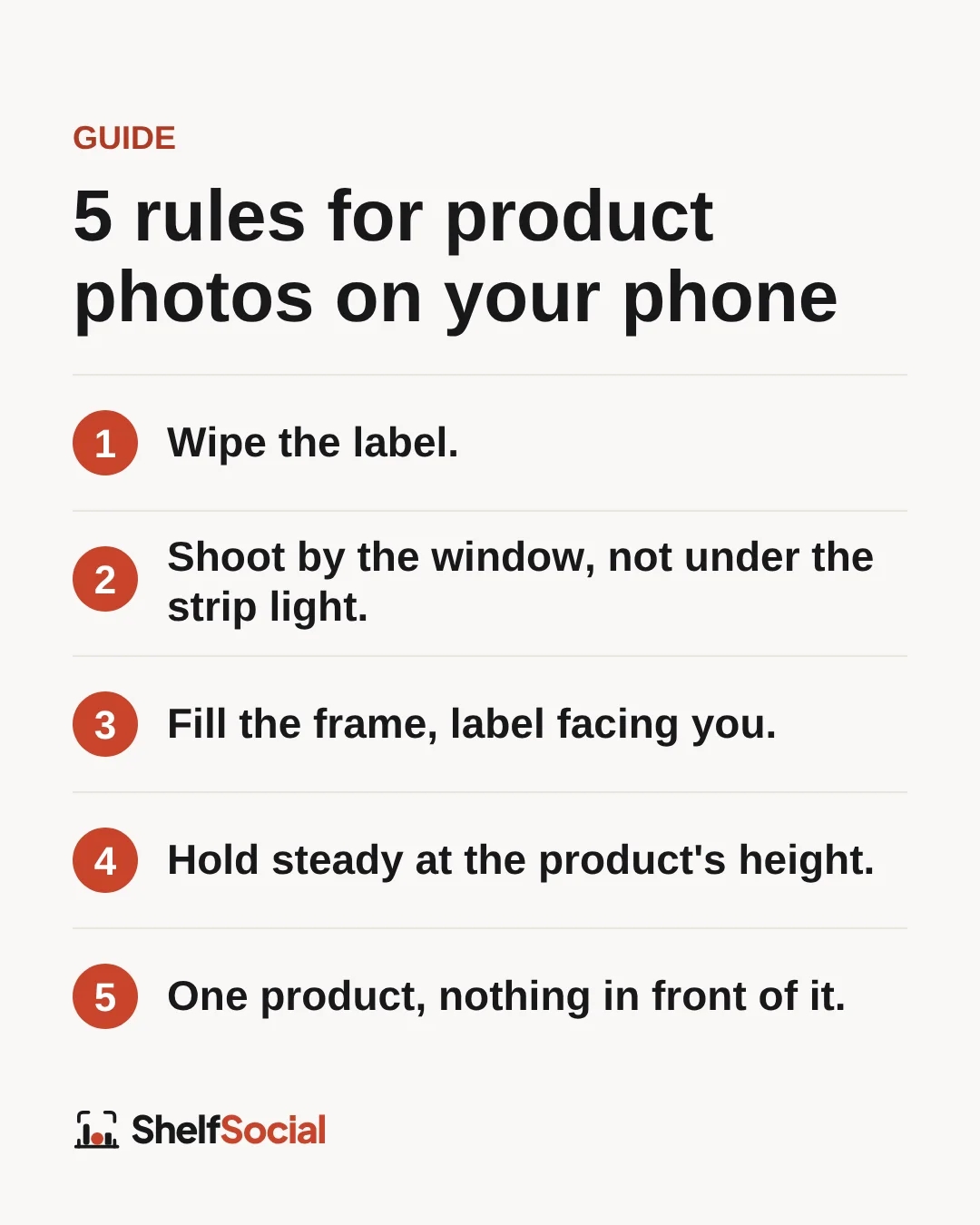
That’s the whole technique. You don’t need a backdrop or a tripod, and you don’t need to clear the counter. The background is the one thing you can stop worrying about, because that’s the part ShelfSocial changes.
Why the label matters most
On Instagram, people scroll fast. The thing that makes them stop is recognising something: a maker they like, a flavour they’ve been looking for, a title they’ve heard about. That recognition lives on the label.
That’s why ShelfSocial is asked to keep the product and its label as photographed. It changes the scene around your product, not the product itself. A clear, readable label in your photo means a clear, readable label in your post. A blurry or glary label can’t be fixed after the fact, so rule 1 and rule 3 do the most work.
It’s still made with AI, so look over every image before it goes out. The app puts a short reminder next to Post and Schedule to check the label, price and caption.
From counter snap to styled post
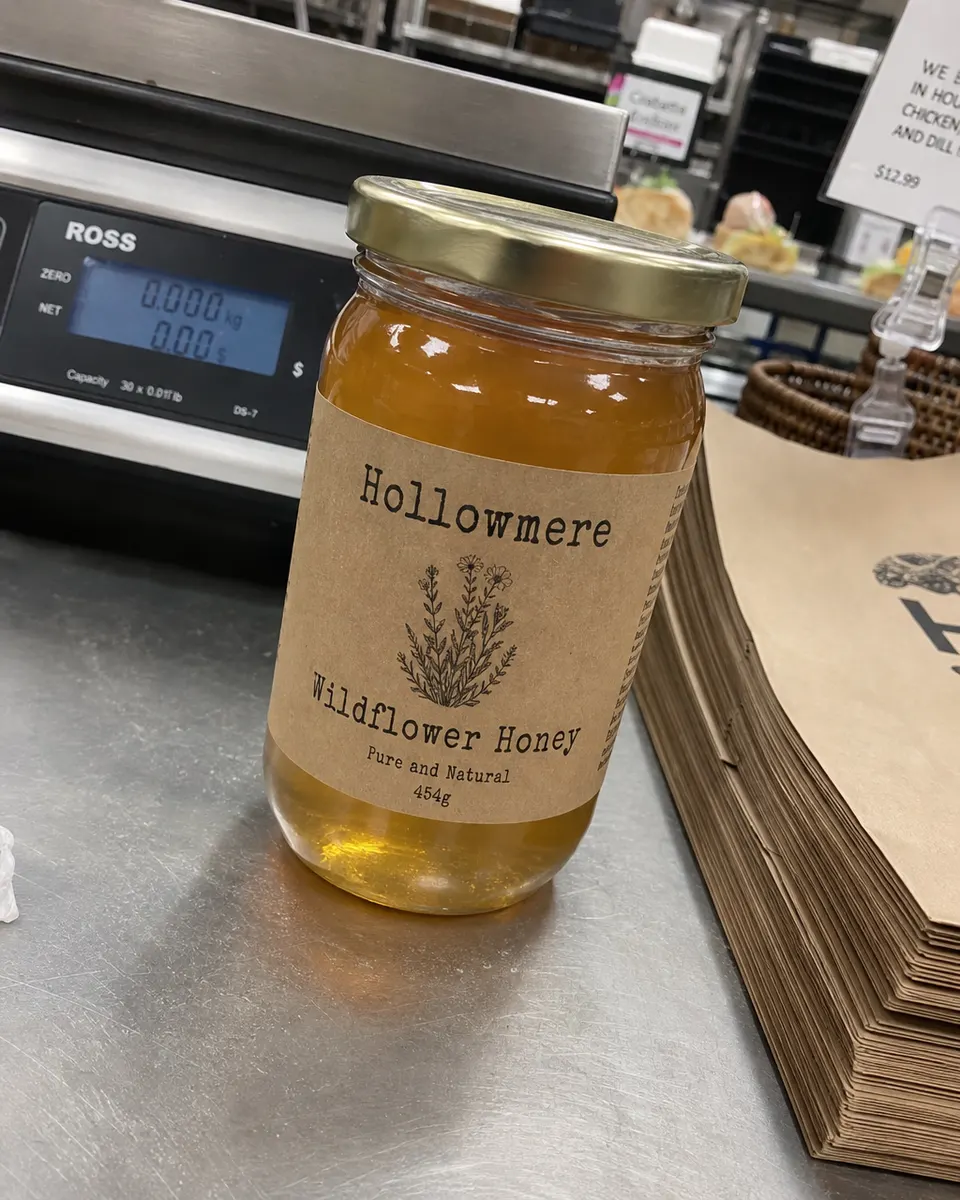
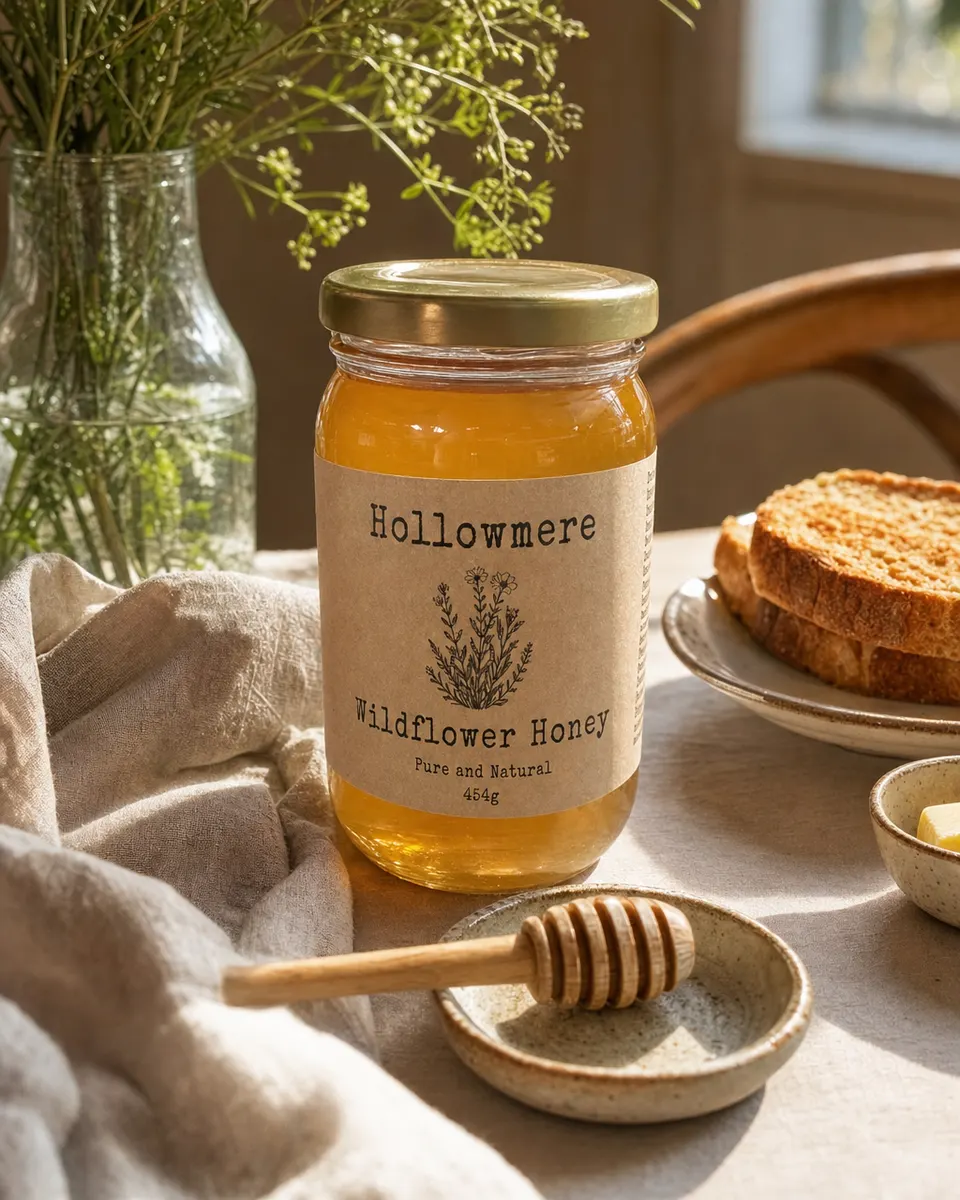
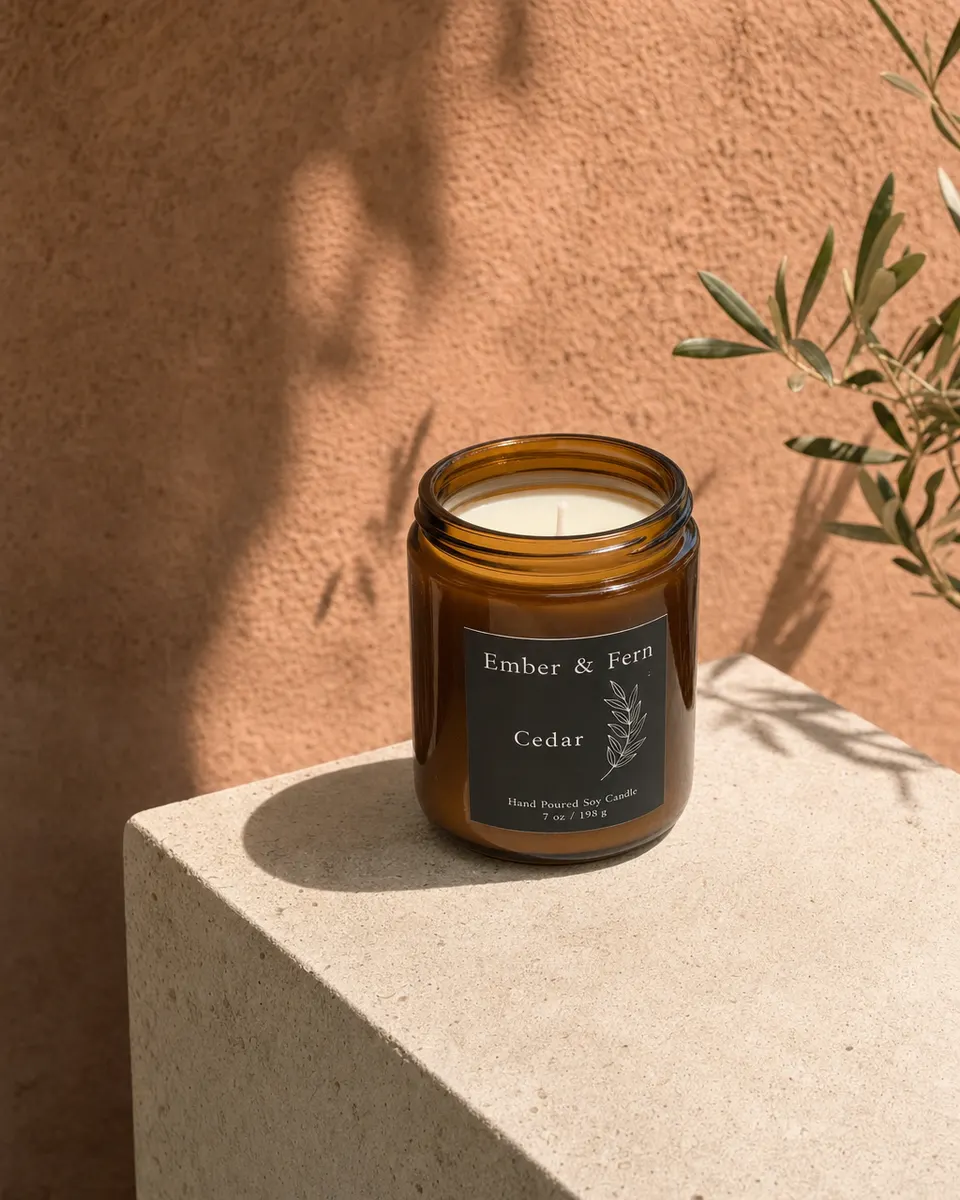
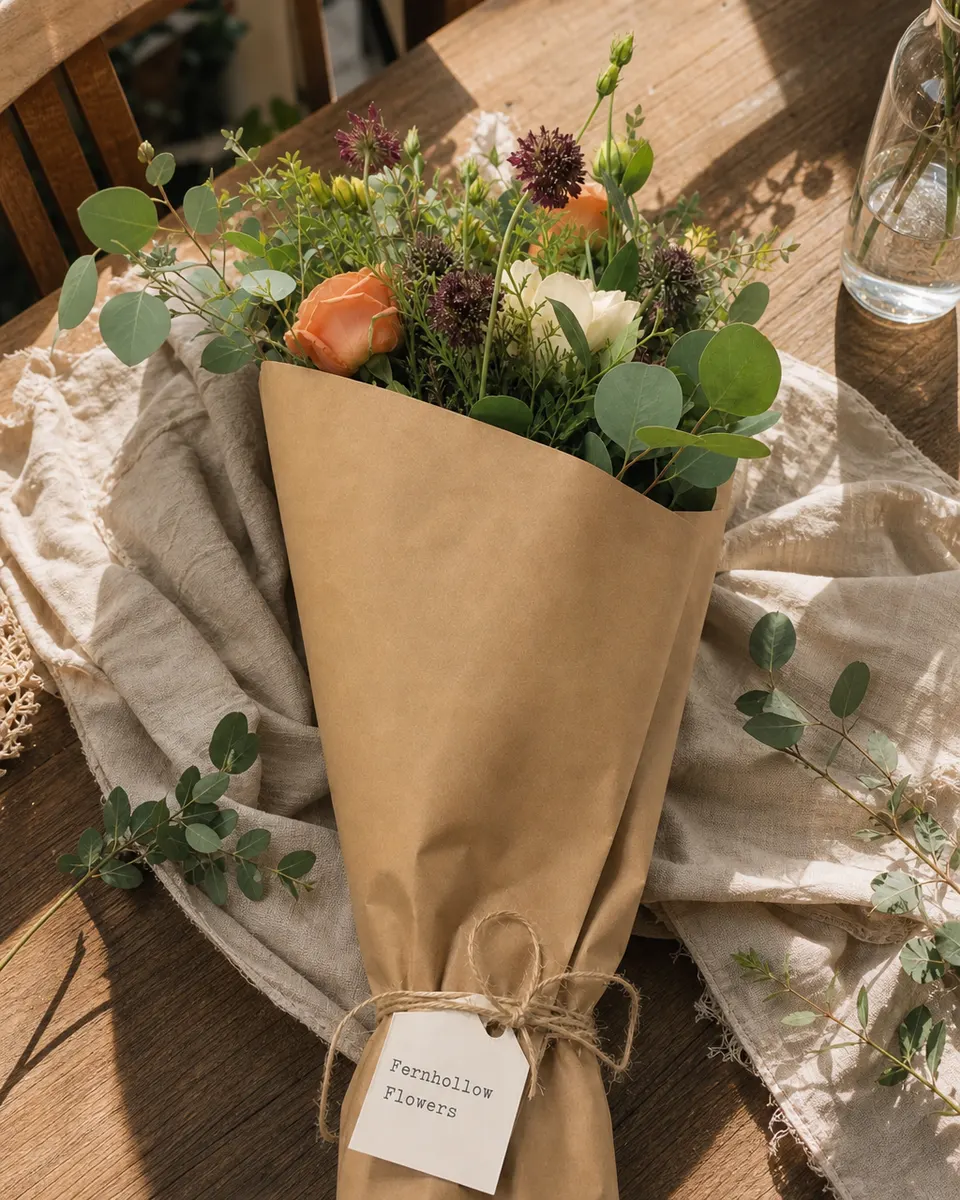
Here’s what those rules look like in practice. Each “before” is a quick snap on a busy shop counter. Each “after” shows the kind of post ShelfSocial makes from a snap like it.
 Before
 After
After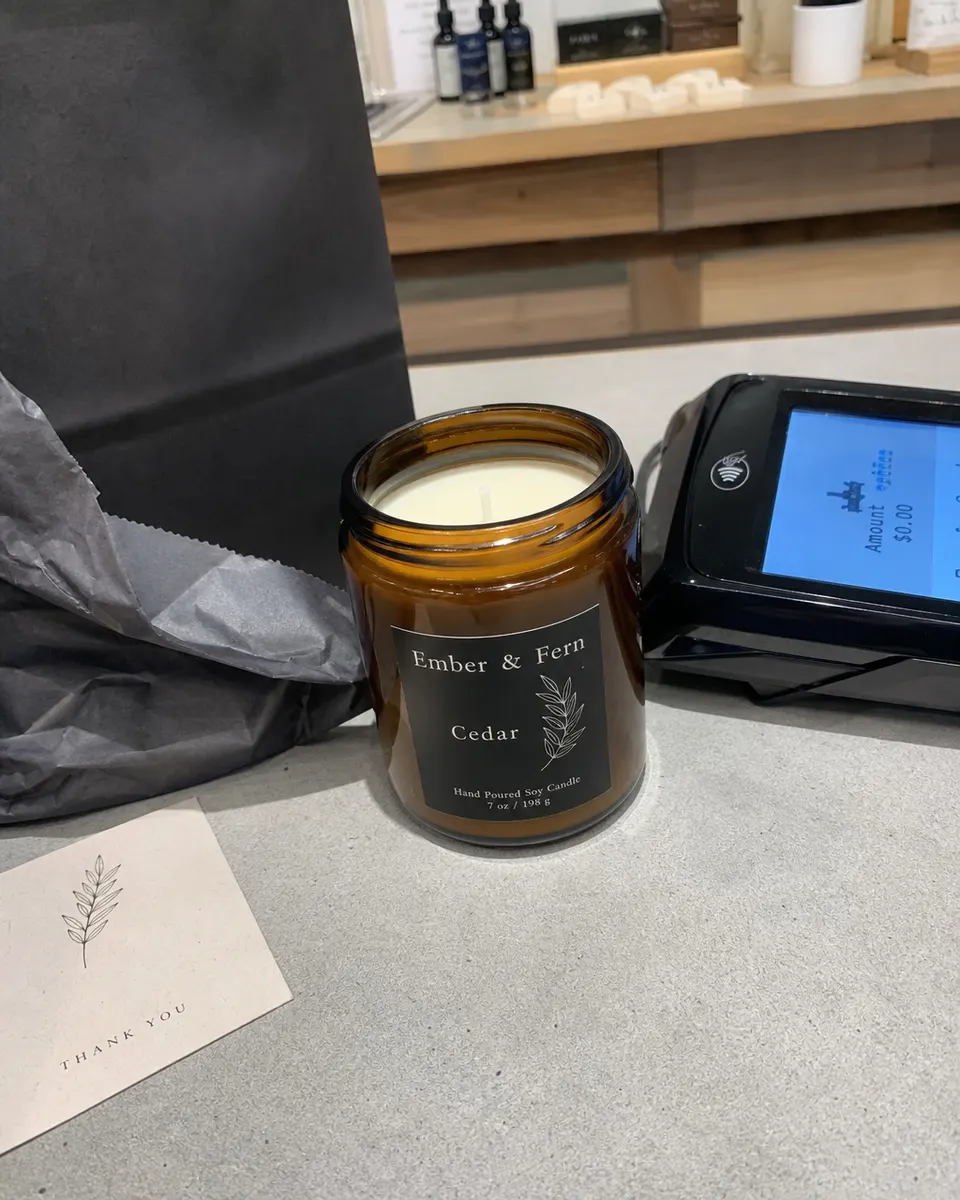 Before
 After
After Before
 After
After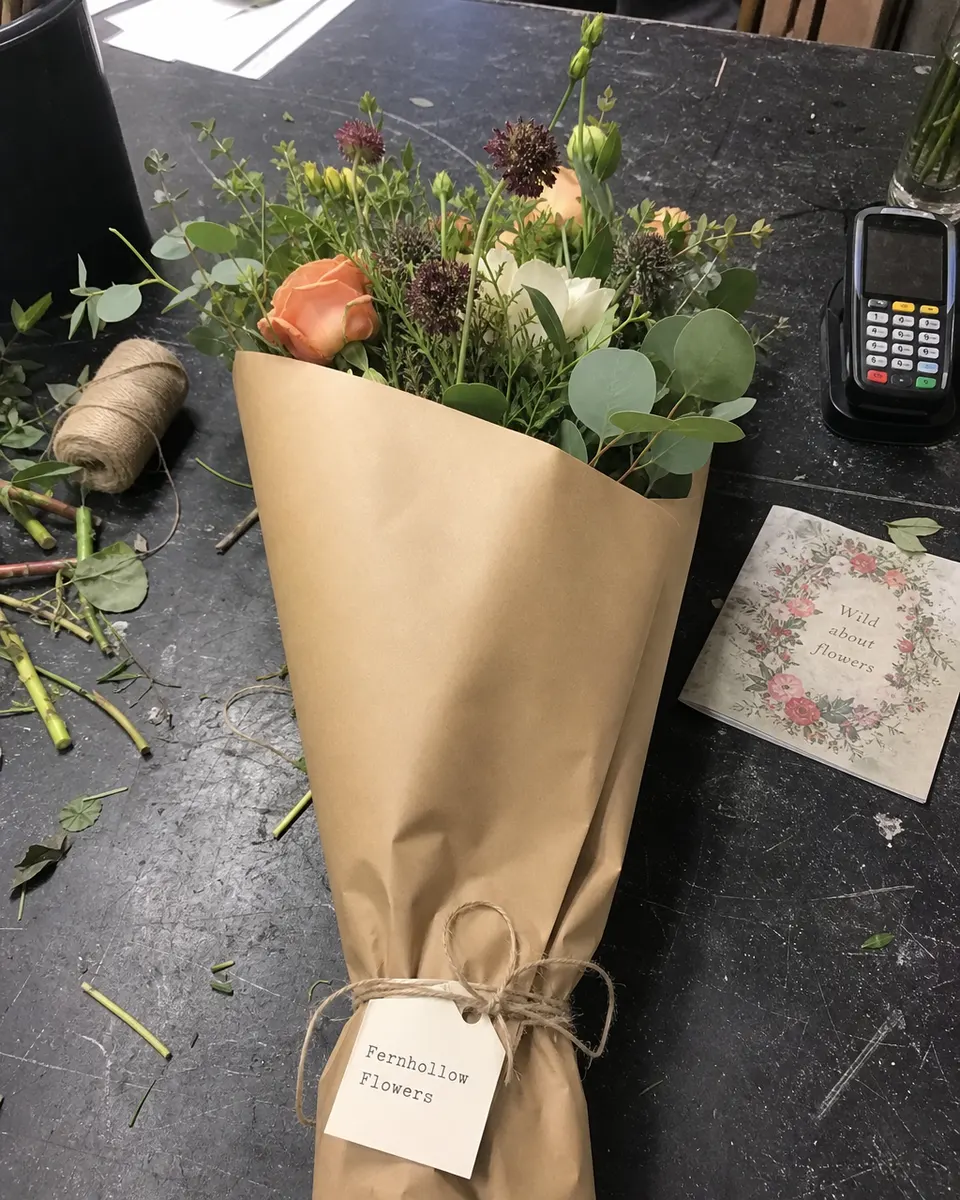 Before
 After
AfterNotice what stayed the same: the jar, the candle, the box and the bouquet, with their labels and tags. Notice what changed: the card reader, the receipts and the strip lighting are gone.
Turning the photo into a post and a Story
Once you have the photo, the steps in ShelfSocial are short:
- Pick a look. You get four looks made for your kind of shop, such as Studio, Lifestyle, Premium shelf or Seasonal. A florist gets florist scenes. A bookshop gets bookshop scenes.
- Tick Post, Story, or both. The post is 4:5, sized for the feed. The Story is 9:16, sized for the full screen. Each image is 1 credit, and if an image can’t be made, it costs nothing.
- Fix it if you need to. Brighter, a cleaner background, or a fresh take, at 1 credit each. You can compare with your own photo any time.
- Check the caption. ShelfSocial writes one for your shop. Not your voice? Rewrite it as often as you like. Rewrites are free. Add hashtags and a location in one place.
- Post now or schedule. Pick a day and time, or post straight away. ShelfSocial tells you when it’s live. If something goes wrong, you’ll see it in your Calendar with a way to try again.
If it’s a product you’ll post again, save it to your Shelf with its photo, price and details. Next time it comes back in, you won’t need a new photo at all.
Tips for tricky products
Some products fight the camera. A small change usually sorts it out.
Glass and shiny packaging. Windows reflect. Turn the product a few degrees until the bright streak slides off the label. If you can see your own phone in the glass, step slightly to one side.
Jars and tins. Labels wrap round, so the edges bend away from you. Turn the jar until the brand name sits dead centre, and shoot from a little further back with the product still filling most of the frame.
Flowers and bouquets. Shoot the wrap and the tag together, so people can see what they’d be buying. Lay the bouquet on the counter at a slight angle rather than standing it in a bucket.
Books. Keep the cover flat and square to the phone, so the title and author aren’t skewed. Matte covers love window light; glossy ones need the same small turn as glass.
Clothing and soft goods. Fold the piece so the label, pattern or detail you’re proud of faces up. Smooth out creases with your hand before you shoot. A hanger against a plain wall works too.
Boxes of baked goods. Open the lid so the bake shows, and keep the sticker or stamp on the box in view. Shoot it soon after it comes out, before it’s been picked over.
Common mistakes (and quick fixes)
Shooting from above. A top-down angle squashes jars and boxes and hides the front label. Drop the phone to the product’s height.
Using the flash. Flash bounces off glass, foil and shiny packaging and leaves a white blob where the name should be. Turn it off and move to the window.
Zooming in. Digital zoom softens the photo. Walk closer instead.
Leaving the price sticker on. If you want the price in the post, put it in the caption, where you can change it.
Too many products at once. A shelf of ten items is a nice photo of your shop, but it isn’t a product post. Pick one, post it, and save the others for the rest of the week.
Waiting for the perfect moment. The best photo is the one you take the morning it arrives. Ten seconds by the window beats a photo shoot you never get round to.
The same rules work for wine, spirits and beer. ShelfSocial doesn't make scenes of people drinking or write age or health claims, and the caption line "Please enjoy responsibly." is on by default for liquor shops. You can switch it off. See ShelfSocial for liquor and bottle shops.
The short version
Clean label, window light, fill the frame, eye level, one product. That’s a good product photo. Turning it into a post that looks planned is the part ShelfSocial does, from your phone, in a few taps. Pick your shop below to see the looks made for it.
See it for your kind of shop
Questions
Do I need a good camera or a lightbox for product photos?
No. A recent phone camera is enough for Instagram. Window light, a clean label and a steady hand matter far more than the camera. If the background is busy, ShelfSocial can place the product in a styled scene for you.
Will the AI change my product's label?
ShelfSocial is asked to keep the product and its label as photographed, so the name and details read the same. It's made with AI, so give the label, price and caption a quick look before you post. The app reminds you.
What size should an Instagram product photo be?
For the feed, a 4:5 portrait fills the most screen. For Stories, it's 9:16. ShelfSocial makes both from one photo, so you don't have to crop anything yourself.
Can I use photos already in my camera roll?
Yes. You can take a new photo or pick one you already have. The five rules still help, so pick the clearest shot with the label facing the camera.